
Overview
Lead routing rules create a workflow for what will happen with a lead as it progresses through the sales pipeline. When working with integrations you may choose to use lead routing rules.
Note
Lead Routing Rules are configured by your Unifyr One team. Submit a request if you want to use them.
Here are some things to keep in mind when working with lead routing rules between Unifyr One, CRM, and PRM.
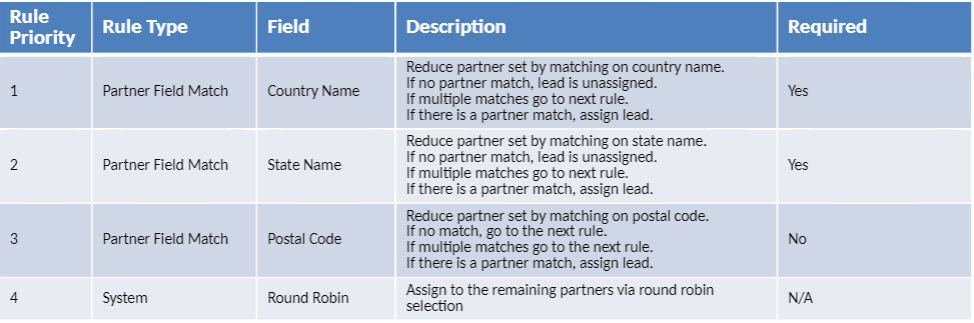
- Unifyr One routing rules follow a single path of steps where each rule narrows the set of possible partners for routing.
- For routing rules to function properly, add a field to the lead record that correlates with a field in the CRM or PRM.
- Examples of ways to route leads include geography, partner tier, specialization, etc.
- If a partner is configured on a PRM module, when the lead is not routed to any partners in routing rules, then the lead is assigned to the default partner.
- Here is the order Unifyr One uses for running the rules.
- PRM lead routing rules run first.
- Regular routing rules such as partner lead field match, lead field value, special case: lead rule but lead has no value for the field, and special case: rule eliminates all partners.
- Round Robin and multiple partners.
- Each rule can be required or optional. This determines how the platform handles a situation where there are no partner matches.
- If the rule is required, the lead will be sent to Unifyr One for manual review.
- If the rule is optional, the lead will be skipped and the next rule in the sequence is evaluated.
As each lead is routed to Unifyr One, we keep a history of the path the lead takes from the supplier to the partner. This history will help you to identify why a lead was routed or if it was not routed what happened along the way.
The lead routing details will help you to build strong routing rules and gain a clear understanding of your lead processes.
To view the lead routing details (if applicable on a lead):
- Navigate to Leads & Deals > Lead Distribution.
- In Distributed Leads, select the lead whose routing information you want to review.
- Click Edit.
- In the Lead Details view, expand the Status section. This reveals the Lead Routing Module and lists the routing steps that the lead has encountered.
Comments
Please sign in to leave a comment.